

How To Create Chat Bot In Telegram
Polling mode to work locally
Telegram Bot can work w ith a Pull or with a Push mechanism (see further Webhooks). The pull mechanism is where the bot (your code) is checking regularly for new available messages on the server.
Everyone agrees this is not an ideal approach (unnecessary waste of resources, messages are discarded after 24 hours), but it is convenient when developing locally. (no tunneling software like ngrok is required).
def main():
updater = Updater('myTelegramToken')dp = updater.dispatcher
# define command handler
dp.add_handler(CommandHandler("help", help_command_handler))
# define message handler
dp.add_handler(MessageHandler(Filters.text, main_handler)) updater.start_polling()
Webhooks on production
Once the bot is ready for deployment it is time to enable the Webhook: doing so Telegram will push the updates to the registered webhook endpoint and your service gets busy only when there are new incoming messages.
          updater.start_webhook(listen="0.0.0.0",
            port=3978,
            url_path='myTelegramToken')
updater.bot.setWebhook('https://example.com/svc/myTelegramToken') Note: webhook works nicely with a serverless architecture or with 'on-demand' nodes. I have deployed Telegram webhooks on Heroku Free Tier which goes to sleep after 30 min inactivity, but if a new message is pushed the Heroky Dyno starts up and the message is consumed within few seconds.
Note 2: depending on where the bot is deployed the port number needs to be configured. On Heroku, for example, the port is typically defined by the PORT environment variable and should never be hardcoded.
How to register a webhook
You can do this calling a the setWebhook URL: use your private token and pass the URL (must be HTTPS) of the webhook.
https://api.telegram.org/bot{myTelegramToken}/setWebhook?url=https://example.com/svc Switch between Pull and Push mode
I find it extremely convenient to switch programmatically between polling and webhook using an environment variable: the default is polling to work locally but, when deploying on the live system, it can be overridden (to webhook) .
          # read MODE env variable, fall back to 'polling' when undefined
mode = os.environ.get("MODE",            "polling")                                if            DefaultConfig.MODE ==            'webhook':
            # enable webhook
            updater.start_webhook(listen="0.0.0.0",
            port=3978,
            url_path='myTelegramToken')
            updater.bot.setWebhook('https://example.com/svc/myTelegramToken')                      else:
            # enable polling
            updater.start_polling()
Obtain the Chat Id
Replying to an incoming message is pretty simple.
update.message.reply_text("Hi there!") however sometimes we want to be able to initiate the message without the user asking anything (for example a notification after few days to re-engage our users).
Retrieve (and save) the chat_id which is found in the JSON payload of the message sent by the user (yes, you need at least one message)
          {'update_id': 527095032,
            'message': {
            'message_id': 412,
            'date': 1615991013,
            'chat': {
            'id': 931365322,
            'type': 'private',
            'username': 'gcatanese',
            ....
When parsing the payload Python do not forget that different messages have slightly different JSON.
                      def            get_chat_id(update, context):
            chat_id = -1              if              update.message              is not None:
              # text message
              chat_id = update.message.chat.id
              elif              update.callback_query              is not None:
              # callback message
              chat_id = update.callback_query.message.chat.id
              elif              update.poll              is not None:
              # answer in Poll
              chat_id = context.bot_data[update.poll.id]                          return              chat_id
Suggested Actions
Guide the conversation providing the user with predefined options to choose from. This can be achieved using the InlineKeyboardMarkup , a keyboard that appears along the message (like a question).
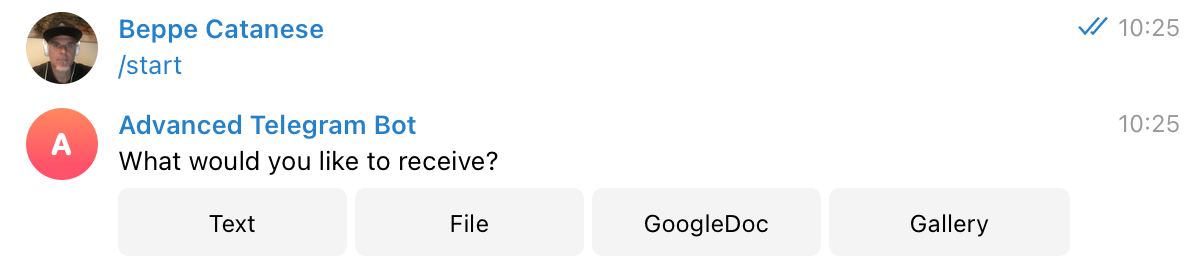
Here is the Python snippet to create the options:
          options = []
options.append(InlineKeyboardButton(text='Text', callback_data='1'))
options.append(InlineKeyboardButton(text='File', callback_data='2'))
options.append(InlineKeyboardButton(text='GoogleDoc', callback_data='3'))
options.append(InlineKeyboardButton(text='Gallery', callback_data='4'))          reply_markup = InlineKeyboardMarkup([options])          context.bot.send_message(chat_id=get_chat_id(update, context), text='What would you like to receive?', reply_markup=reply_markup)
It is important to understand that the response will be processed by a CallbackQueryHandler and the incoming JSON payload is different from the plain text message.
          # input from text message
text = update.message.text
# selection from callback
choice = update.callback_query.data Note: one a selection is made the Options disappear from the chat.
Note2: define callback_data using a constant value which will be used to decide what to do. Unlike the text on the button this value should not change as it is not visible to the user.
          choice = update.callback_query.data                      if            choice ==            '1':
            # Choice 1: Text
            update.callback_query.message.edit_text('You have chosen Text')
Show "Typing…"
Display the Typing indicator is a common feature in chatbots: users are informed a message is about to arrive, even if there is a little delay.
          context.bot.send_chat_action(chat_id=get_chat_id(update, context), action=telegram.ChatAction.TYPING, timeout=1)
time.sleep(1) Note: while display the Typing indicator I normally introduce a short delay to create the feeling of a real conversation.
Deeplinking with an additional parameter
Deeplinking is a mechanism which allows to open a conversation with a given bot. This is useful to share the link to the bot on web sites, emails or Social Media.
When defining the deep link it is possible to add an additional parameter:
https://t.me/username_bot?start=signup The link opens the Telegram application prompting to start the conversation with the bot. The additional parameter is passed to the CommandHandler processing the /start command.
                      def            start_command_handler(update, context):
            param_value = context.args[0]
            update.message.reply_text('Value is ' + param_value)
Send a File
The chatbot can send files (i.e. PDFs, Office) in different ways.
Use send_document with the full URL to the file:
          url='https://github.com/gc/TelegramBotDemo/raw/main/test.pdf'
context.bot.send_document(chat_id=get_chat_id(update, context), document=url) Note: this approach requires a URL which points directly to the file.
Another approach is to first download locally the file then send it with the same method send_document .
          # fetch from Google Drive
url = 'https://drive.google.com/file/d/0BZ3dWQ2ZXVOdE1V/view'
r = requests.get(url, allow_redirects=True)
# save local copy
open('file.ppt', 'wb').write(r.content)          # send file to user
context.bot.send_document(chat_id=get_chat_id(update, context), document=open('file.ppt',            'rb'), filename="Presentation.pptx")
Note: this approach is usually necessary when the URL does not point directly to a file, but it is an endpoint streaming out the content on demand.
Create a Media Gallery
A cool feature is sending a group of media like photos, videos and audios.

          list = []          # define list of files
list.append(InputMediaPhoto(media='https://../mintie.jpg', caption='Mint'))
list.append(InputMediaPhoto(media='https://../pinkie.png', caption='Pink'))
list.append(InputMediaPhoto(media='https://../orangie.png', caption='Orange'))context.bot.send_media_group(chat_id=get_chat_id(update, context), media=list)
Note: the bot can send up to 10 media files at the same time.
Note2: each message counts within the Telegram Rate limits (30 messages per second) therefore you can send up to 3 messages with 10 media each (in total 30) but, in this case, you cannot add anything else in the same transaction (not even a simple text message).
Conclusion
I hope the article helps to understand some more advanced scenarios and to discover features that can make your Telegram chatbot a little bit more special. My advise is to always consider first what the users are looking for (why would they chat? ) and then design it in a way that makes their conversation frictionless and enjoyable: striking a good balance determines the success of your chatbot.
Check out the Github repo where you can grab the code snippets shown above.
Find me on Twitter for questions and suggestions.
Happy chatting!
How To Create Chat Bot In Telegram
Source: https://towardsdatascience.com/bring-your-telegram-chatbot-to-the-next-level-c771ec7d31e4
Posted by: bentleyswuzzin.blogspot.com
0 Response to "How To Create Chat Bot In Telegram"
Post a Comment